Create an invoice
Choose the family or student, tick the sessions, check the review and save.
For tutors. Updated October 2026.
Where to find it
- On a phone
- Billing, then New invoice
- On a computer
- Invoices, then New invoice
Invoice now on a family's or student's page, and Invoice on your dashboard's To invoice list, start it with the family already chosen.
Steps
Press New invoice and choose the family under Families, or the student under Independent students.
Each one shows how many sessions it has to invoice.
Under Sessions to invoice, tick the sessions to put on it.
Completed sessions start ticked. Late cancellations and no-shows start unticked: tick any you want to charge. From Invoice on your dashboard, they all start ticked.
Optional: Check the total. Add a discount or date it earlier if you need to.
Press Save, or Save as draft to keep it to yourself for now.
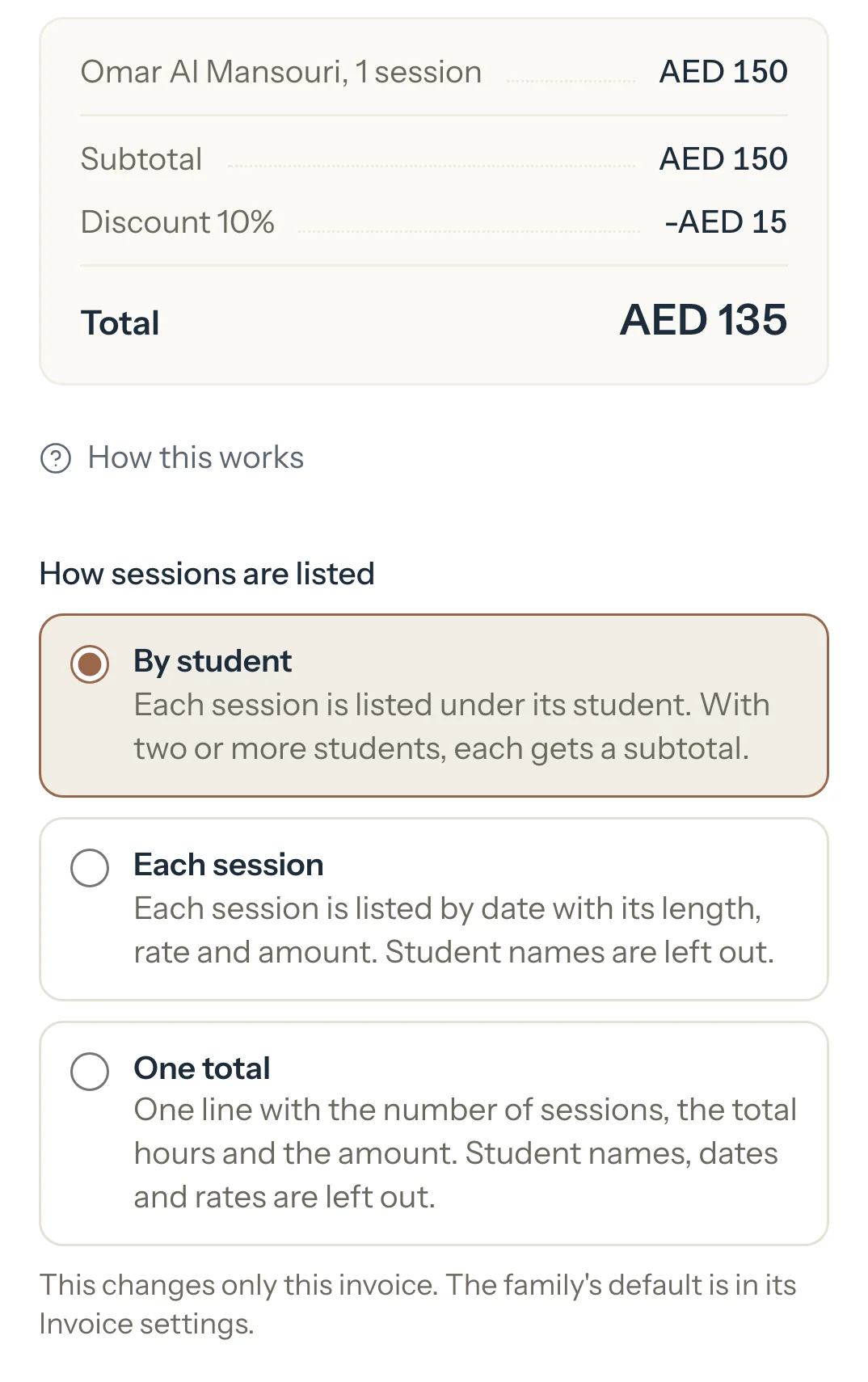
Review invoice opens with the total, student by student. For a draft the same box is titled Save as draft.
Optional: Choose How sessions are listed. It starts on the family's usual choice.
Optional: If the family has already paid, switch on Paid and say how and when. A draft has no Paid.
Press Save, or Save as draft for a draft.
The invoice gets its number and shows in the family's portal. Nothing is emailed until you send it.
An example
The Al Mansouri family's invoice for mid-September, with Omar's no-show ticked and 10% off for two children. Review invoice shows:
- Omar Al Mansouri, 2 sessions
- AED 300
- Sara Al Mansouri, 3 sessions
- AED 1,045
- Subtotal
- AED 1,345
- Discount 10%
- -AED 134.50
- Total
- AED 1,210.50
What happens next
- Its sessions leave To invoice, and Invoiced and Unpaid go up by the total, AED 1,210.50.
- Earned goes down by the discount, AED 134.50.
- A draft changes none of your figures: its sessions stay in To invoice until you save it.
What parents see
- Once saved, the invoice shows in their Billing with what's left to pay. A draft never shows.
- Nothing is emailed to them until you share it.
Good to know
- Only sessions that happened and aren't on an invoice are listed: completed ones, late cancellations and no-shows. Mark the others first.
- Each student's sessions are grouped under their name, with one tick for all of them.
- If the family has money paid ahead, Review shows what's already paid and what will be left before you save.
- An invoice with a total of 0 is saved as Paid: there's nothing to collect.
- A session can be on one invoice only. To change an invoice once it's saved, cancel it and make it again.
- For families who'd rather not wait for you, Tutello can make the invoices automatically.
If something's not right
"Nothing to invoice."
None of their sessions is marked and off an invoice. Press Go to calendar and mark the sessions that happened.
"Some sessions were just invoiced. Refresh and try again."
Another device, or an automatic invoice, took some of these sessions. Refresh the page and tick again.
"Totals changed. Refresh and try again."
A session's total changed while the page was open. Refresh it and check the total.
Related
Still stuck? Email support@tutello.ae.