Add a session
Choose the student, the day, the time and the length, and save; two students can share the same time.
For tutors. Updated October 2026.
Where to find it
- On a phone
- Calendar, then the + button
- On a computer
- + New session in the sidebar
Tap an empty hour on the calendar to start one at that time, or press New session on a student's page.
Steps
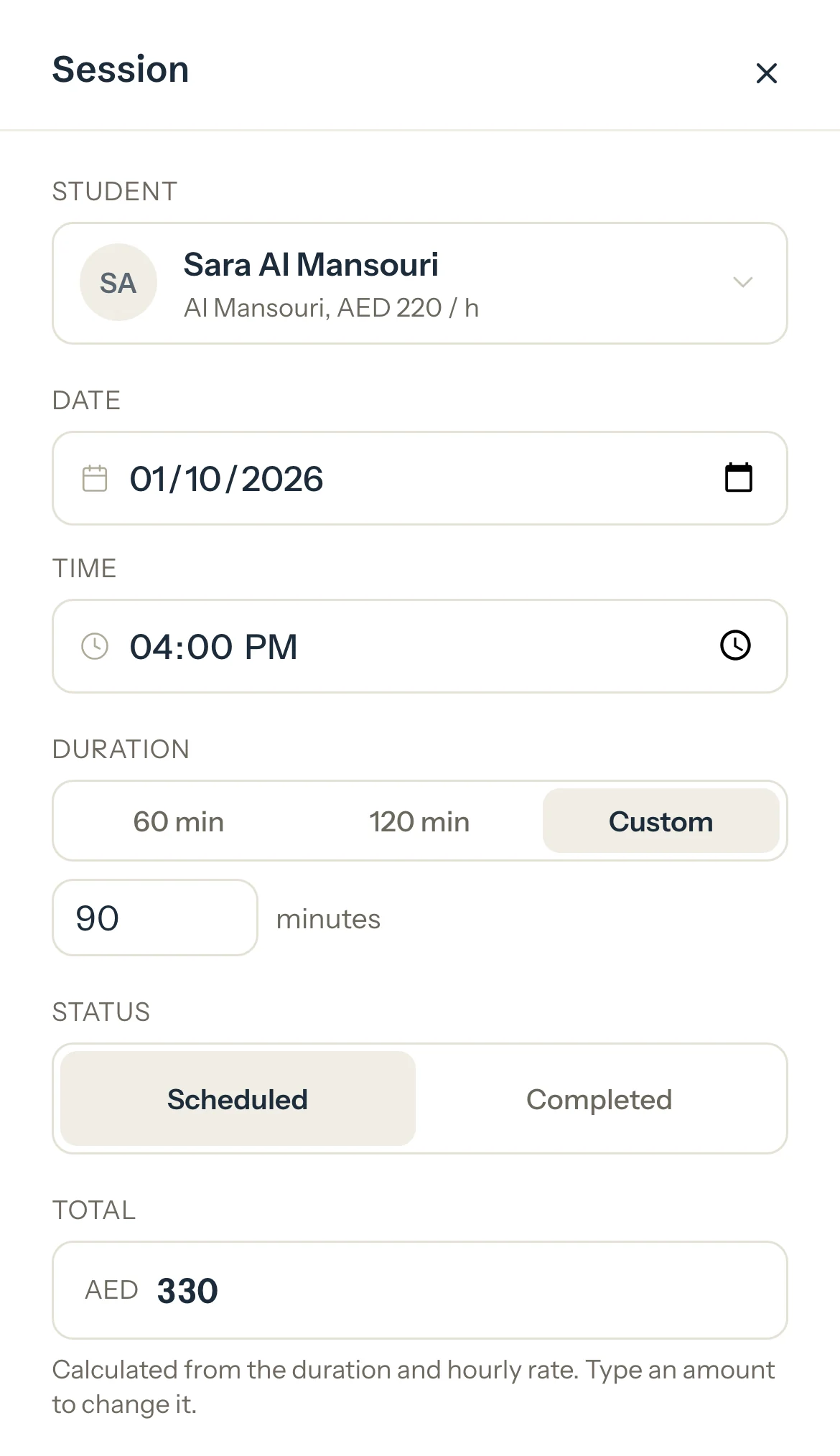
In Student, choose who the session is for. Type to search by student or family.
Their family and hourly rate show under their name.
Set the Date and Time.
Choose the Duration: 60 min, 120 min, or Custom and type the minutes.
Total shows what the session comes to at the student's rate.
Optional: Type the Subject, for example Physics.
Optional: Add a note and choose Private or Shared. See Keep notes private or share them.
Optional: Switch on Repeat weekly to add it every week. See Repeat a session every week.
Press Add session.
It shows on your calendar as Scheduled.
Good to know
- The session keeps the rate the student has today. A new rate later never changes it: see Set your hourly rates.
- To charge a different amount for this one session, type it in Total: see Charge your own price.
- Two students at the same time is fine, for a group or a sibling. The session is saved and the panel says it overlaps another session.
- A session that already happened can be added as done: choose Completed under Status before you press Add session.
- No students yet? Press Add a new student in the list, then come back to the session.
- Deactivated students aren't in the list. Reactivate them first.
If something's not right
"This student already has a session at this time."
One student can't be in two sessions at once. Choose another time, or open the session that's already there.
"Choose a student first."
Choose who the session is for in Student, then press Add session again.
"This session hasn't started yet. Mark it completed once it starts."
Leave it Scheduled and mark it completed once it starts.
Related
Still stuck? Email support@tutello.ae.