Keep notes private or share them
Private notes stay yours; shared notes appear in the family's portal for parents and the student to read.
For tutors. Updated October 2026.
Where to find it
Calendar, then the session, then Notes
Sessions opened from a family's or student's page have the same Notes.
Steps
Open the session, or start a new one.
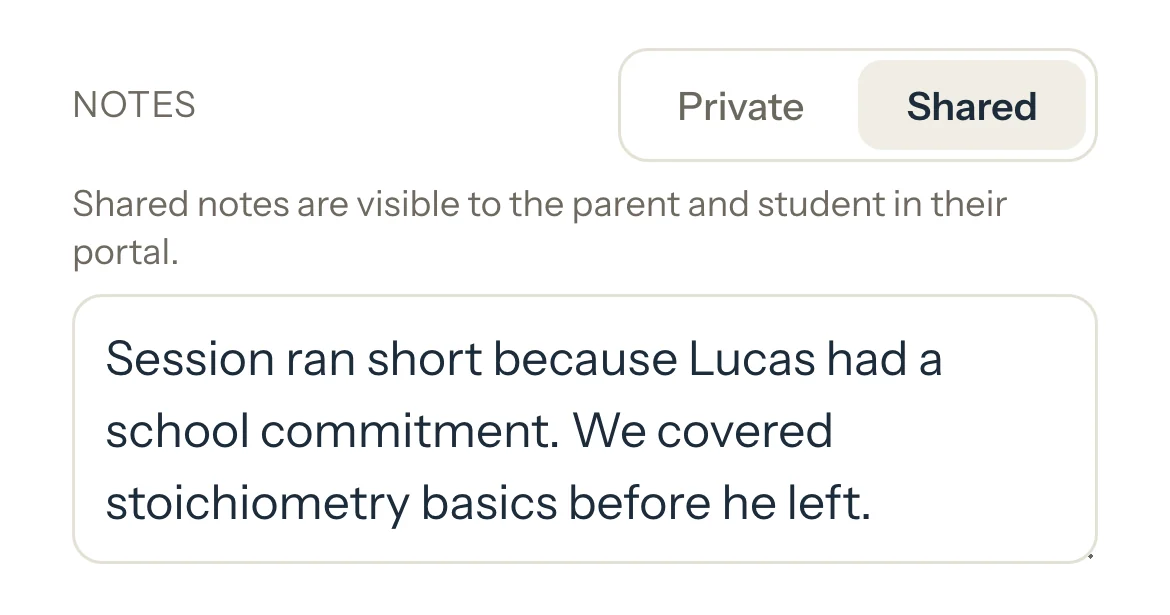
Under Notes, type what you want to remember or tell the family.
Choose Private to keep it to yourself, or Shared to show it in the portal.
A new session's note starts as Private.
Press Save changes, or Add session for a new one.
What parents see
- Parents and students with portal access see your latest shared notes on their portal's home page, each with the student's name and the session's date.
- A private note never leaves your account.
Good to know
- A shared note shows in the portal once the session has started, not before.
- You can change a note, or switch it between Private and Shared, at any time, even once the session is on an invoice.
- Notes never go on an invoice, its PDF or a calendar file.
- Notes on a family's or a student's own page are always private.
- Deleting a session deletes its note too.
- A shared note also shows under Session by session on a Detailed report card, for as long as it stays Shared. The session's panel then says which card it appears in.
If something's not right
A parent can't see a note.
Check it's set to Shared and saved, and that the session has started. Only parents and students with portal access see notes: see What parents and students can see.
Related
Still stuck? Email support@tutello.ae.