See your sessions in Google Calendar
Connect Google Calendar once in Settings, and Tutello keeps your sessions in a calendar called Tutello in your Google account.
For tutors. Updated October 2026.
Where to find it
- On a phone
- Settings (tap your initials), then Sessions, then Your calendar
- On a computer
- Settings, then Sessions, then Your calendar
Before you start
Use a personal Google account if you can. A school or work account may be blocked by its organisation.
Open Tutello in Safari or Chrome. Google doesn't allow its sign-in inside the browser of Instagram, Facebook or LinkedIn.
Steps
Open Settings, then Sessions. Under Your calendar, press Connect Google Calendar.
The button reads Opening Google, then Google's own screen opens.
Choose your Google account. If Google shows a box that lets Tutello manage its own calendar, tick it, then continue.
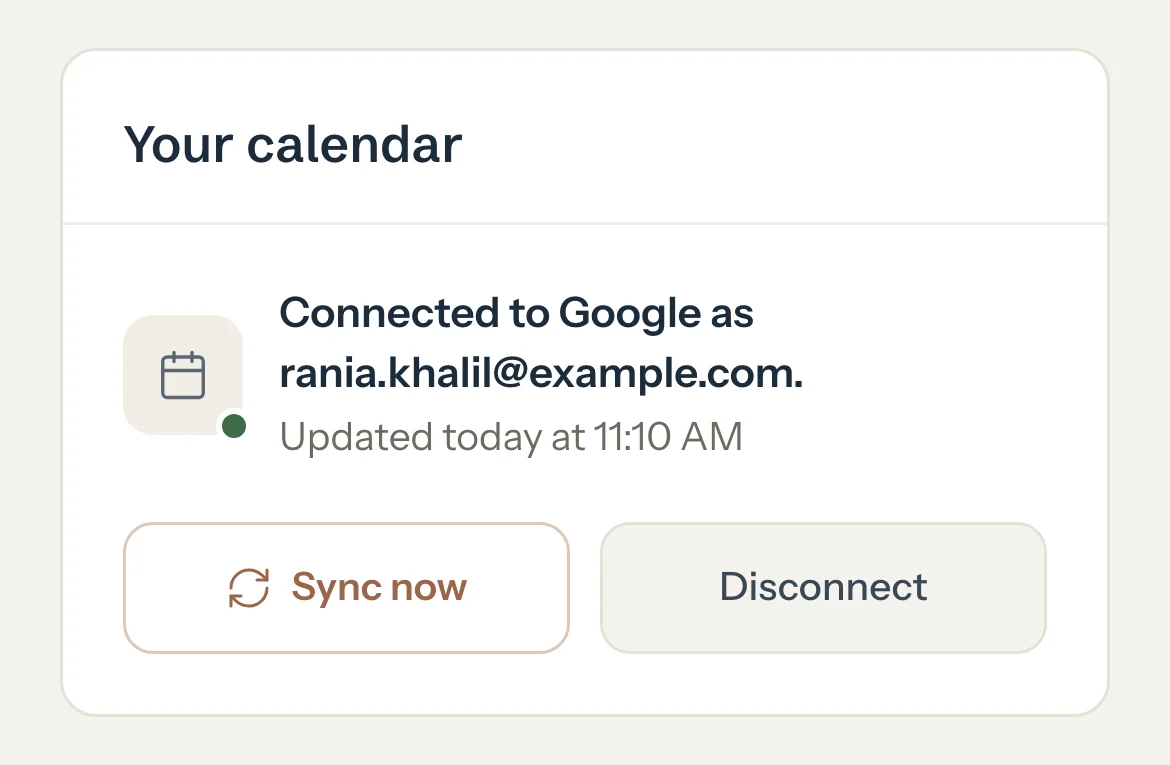
Back in Tutello, check the account on the card.
The card names the Google account you connected, and Tutello starts adding your sessions to a new calendar called Tutello. It can take a minute.
An example
Layla has a Maths session on Tuesday at 4:00 PM. You move it to Wednesday at 5:00 PM in Tutello. A few seconds later, the Tutello calendar in Google shows:
- Event
- Layla (Maths)
- Day and time
- Wednesday, 5:00 PM
- Reminder
- 4:30 PM
Good to know
- Each event shows the student's first name and the subject, at the session's time. A group session shows the students' first names. Nothing else: no amounts, notes, family names, addresses, phone numbers or emails.
- Nobody is invited to these events, and families get nothing from them.
- Scheduled and completed sessions show, from two weeks ago to a year ahead. A cancelled, late cancelled or no-show session is taken out, so the time reads free.
- A change in Tutello shows in Google within a few seconds. A phone's calendar app can take a little longer to catch up.
- If Tutello can't reach Google, it tries again by itself: a few minutes later at first, then less often while Google stays unreachable, up to about six hours apart. It also tries again when you change a session, open your dashboard or calendar, or come back to Tutello. Sync now tries at once, unless Google asked Tutello to wait.
- Each event has its own reminder 30 minutes before. You can change it on an event in Google. It goes back to 30 minutes when that session changes in Tutello.
- Google picks the colour of the Tutello calendar. You can change it in Google Calendar.
- Changes go one way, from Tutello to Google. Change your sessions in Tutello, not in Google: an event you move, rename or delete in Google is put back at the next full check. Events you add to the Tutello calendar yourself are left alone.
- The full check compares the whole Tutello calendar with your sessions. It runs every morning, and each time you press Sync now.
- In the Google Calendar app on a phone, the Tutello calendar is listed with your other calendars. On an iPhone, the Tutello calendar shows in the iPhone's own Calendar app once your Google account is added there.
- If you connect from Tutello on an iPhone's home screen and it says nothing was connected, open tutello.ae in Safari and connect there.
- You can have one calendar connected at a time. To use another Google account, press Disconnect first, then connect again.
- Disconnect asks what to do with the calendar: Delete the Tutello calendar from Google, which is chosen at first, or Keep it. It won't change any more. Either way, Tutello stops updating it. If Tutello can't delete the calendar, the card says it is still in Google, and you can delete it there.
- After Disconnect, Google may ask you once more to allow Tutello the next time you press Continue with Google to sign in. Allow it, and you're signed in as before.
- Signing out of Tutello doesn't disconnect your calendar, and neither does changing your Google password.
If something's not right
"Open Tutello in Safari or Chrome to connect. Google doesn't allow it inside other apps."
You opened Tutello from a link inside another app. Open tutello.ae in Safari or Chrome and connect from there.
"Your organisation doesn't allow this. Connect a personal Google account instead."
Your school or employer blocks calendar apps on that account. Connect a personal Google account.
"Nothing was connected. Tick the box that lets Tutello manage its own calendar, then try again."
On Google's screen, tick the box that lets Tutello manage its own calendar before you continue.
Anything else on the card, or a session missing from Google
Related
Still stuck? Email support@tutello.ae.