Use the calendar on a computer or a phone
Week and month on a computer, one day hour by hour on a phone, and what each colour means.
For tutors. Updated October 2026.
Where to find it
Calendar
Steps
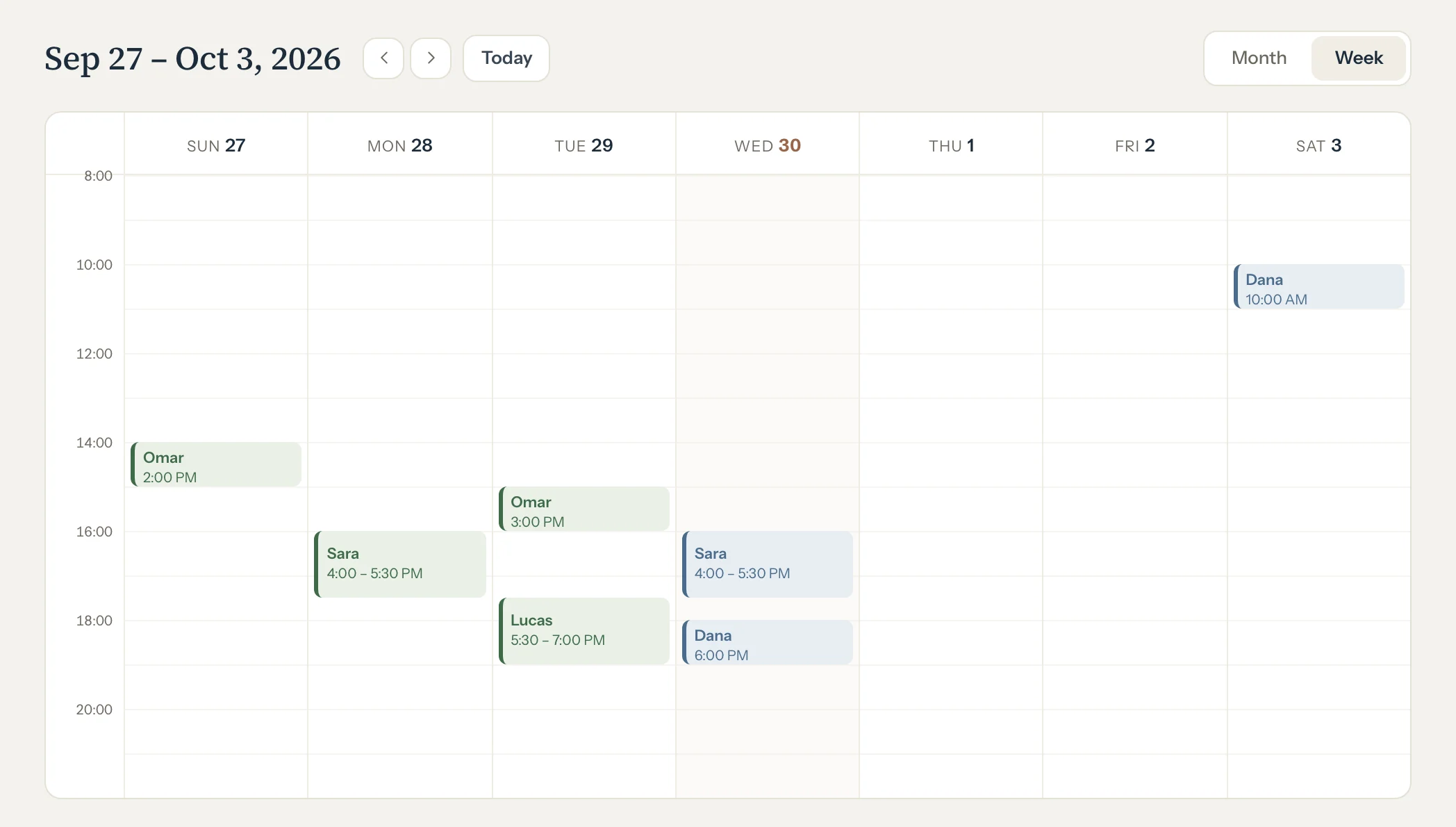
Open Calendar. It opens on Week: on a computer, seven days side by side, hour by hour.
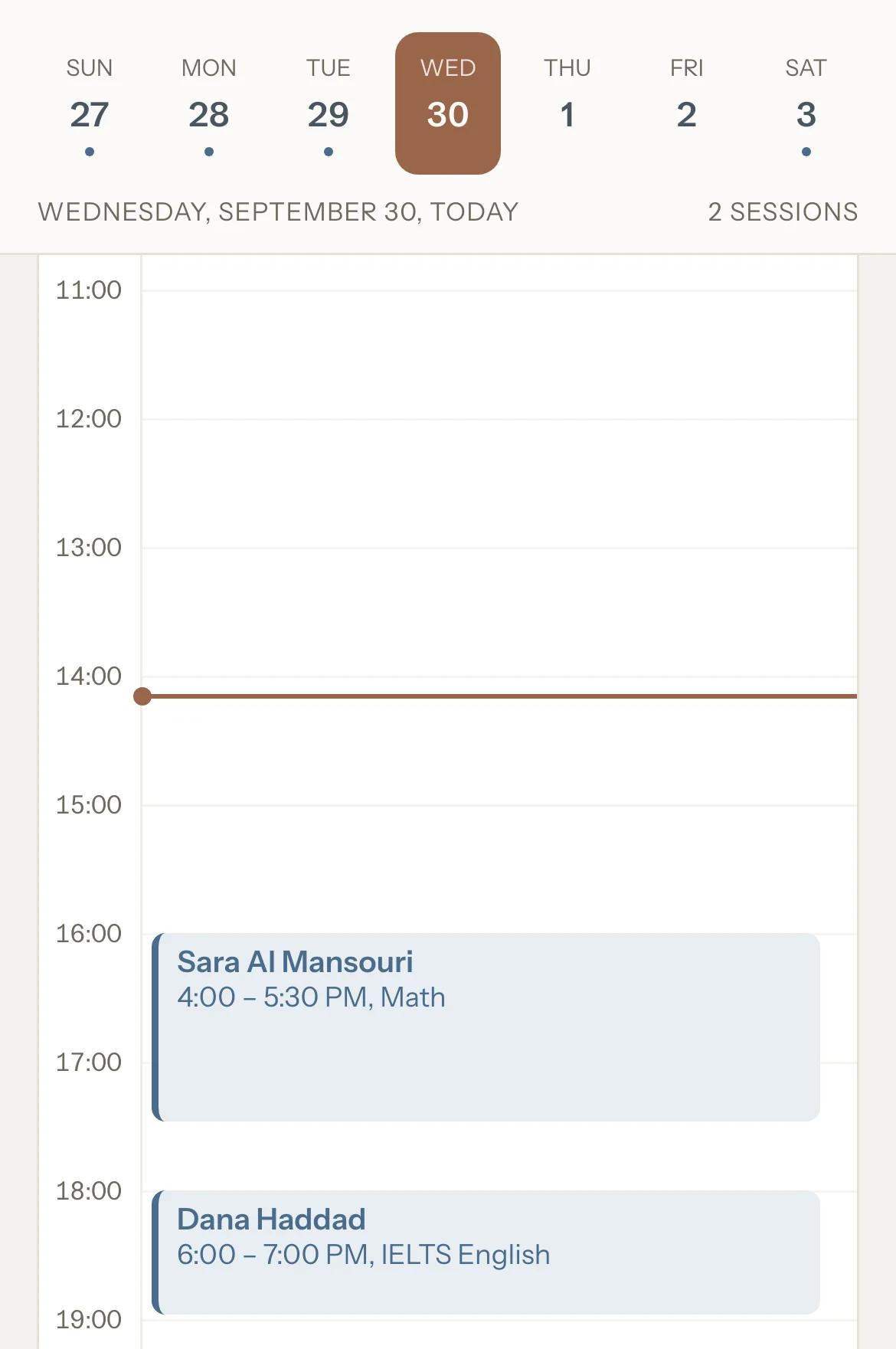
On a phone, Week shows the week's days in a strip and one day under it, hour by hour. Tap a day in the strip, or swipe to the next or previous day.
Press Month to see the whole month. Tap a day to open it in Week.
On a computer each day lists its first two sessions and how many more. On a phone a dot means one session, and a number means more.
Use the arrows to move a week or a month at a time, and Today to come back.
Tap a session to open it.
Its panel opens over the calendar, and fills the screen on a phone.
To add a session at a set time, tap an empty hour.
A new session opens on that day, at that hour.
Good to know
- Each session's colour is its status: blue for Scheduled, green for Completed, amber for Cancelled late or No-show, and grey with the name struck through for Cancelled.
- Times are in the timezone set in Settings, under Profile.
- Weeks start on Sunday.
- Opened from a family's or student's sessions, the calendar shows Back to return to that list.
- Weekly sessions are added four weeks ahead. A week further out stays empty until then, and says so.
If something's not right
"Weekly sessions are added 4 weeks ahead, so they'll appear here closer to the date."
Nothing is wrong: each weekly session appears four weeks before its day. See Repeat a session every week.
Related
Still stuck? Email support@tutello.ae.