Repeat a session every week
Switch on Repeat weekly and the next four weeks of sessions stay on your calendar; stop it any time.
For tutors. Updated October 2026.
Where to find it
- On a phone
- Calendar, then the + button
- On a computer
- + New session in the sidebar
On the calendar, tapping an empty hour starts a session at that time.
Steps
Start a new session and choose the student, the day, the time and the length.
Switch on Repeat weekly.
The line under it says sessions are added four weeks ahead.
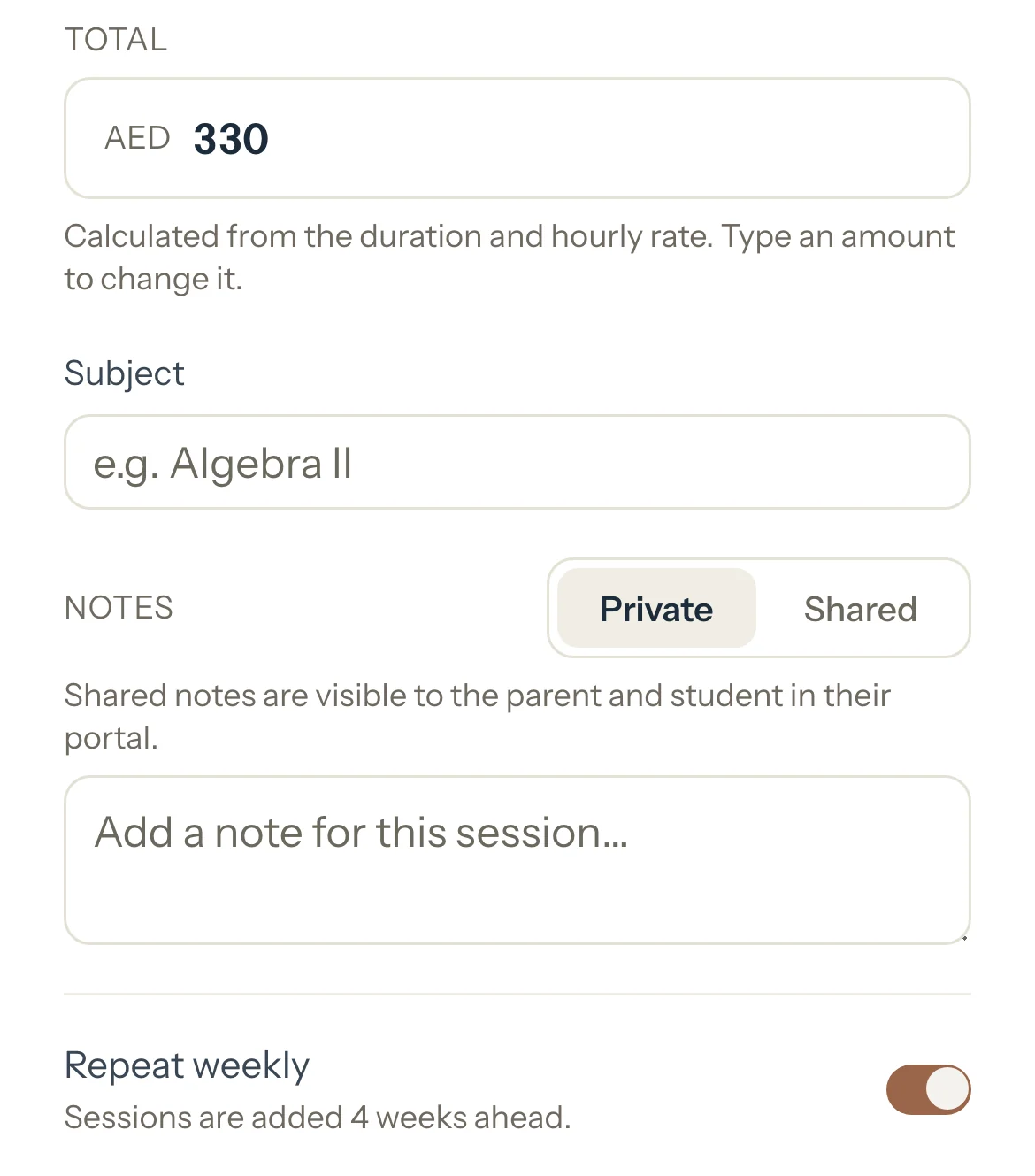
Press Add session.
This session and the same day and time for the next weeks appear on your calendar.
To stop it, open any of its upcoming sessions, press Stop weekly schedule, then Stop schedule.
Its upcoming sessions are removed. Past sessions and sessions on an invoice stay.
Good to know
- Every day Tutello adds the next session, so four weeks ahead are always on your calendar.
- Changing one of these sessions, its time, length or status, changes that one only. The rest of the schedule stays as it was.
- Deleting one session from the schedule doesn't bring it back the next day.
- A weekly schedule keeps the hourly rate it was made with. After a rate change, stop the schedule and add it again.
- Deactivating a student stops their weekly schedules and removes the upcoming sessions those schedules added, unless they're on an invoice. A session you added on its own stays on your calendar until you delete it.
- While your account is read-only after the trial, no new weekly sessions are added.
If something's not right
"Sara Al Mansouri already has a weekly session on Wednesdays at 4:00 PM."
That student already has a schedule at that day and time. Change the existing one's sessions instead, or stop it first.
Related
Still stuck? Email support@tutello.ae.