Add Tutello to your home screen
Open Tutello in one tap from your phone's home screen, like any other app, on an iPhone or an Android phone.
For tutors. Updated October 2026.
Where to find it
Settings, then Preferences, then Install the app
On a phone, Settings opens from your initials.
Steps
Open Tutello in your phone's own browser: Safari on an iPhone, Chrome on Android.
Go to Settings, then Preferences, and find Install the app.
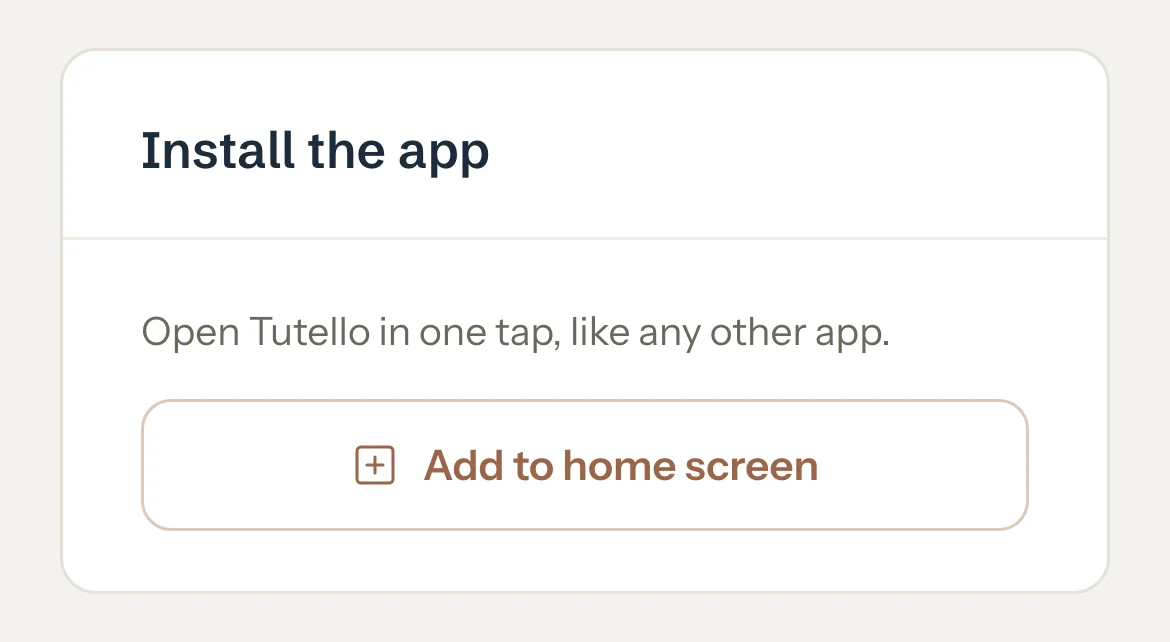
Press Add to home screen.
On Android, your browser asks to install Tutello, or the steps for your browser open. On an iPhone, the steps for Safari open.
If the browser asked, confirm it. If the steps opened, follow them: on an iPhone, tap the Share button, choose Add to Home Screen (scroll down if you don't see it), then tap Add. On Android, open the browser menu, tap Add to Home screen or Install app, then confirm.
Open Tutello from its new icon.
It opens on its own, without the browser around it.
Good to know
- On an iPhone, if you opened Tutello from a link in WhatsApp or another app, open the page in Safari first.
- On a computer, Chrome and Edge can install Tutello too, and Safari on a Mac can add it to the Dock. The same button shows the steps for your browser.
- Once it's added, the card says Tutello is installed on this device.
If something's not right
"Your browser does not support installing apps. Try Chrome or Safari."
Open tutello.ae in Safari on an iPhone, or in Chrome on Android, sign in, and press Add to home screen there.
There's no Add to home screen button.
Tutello is already installed on this device, or you opened it from its icon.
Related
Still stuck? Email support@tutello.ae.