Set, change or remove a password
Sign in with a password as well as Google or an email link, change or remove it, and reset it when you forget it.
For tutors. Updated October 2026.
Where to find it
- On a phone
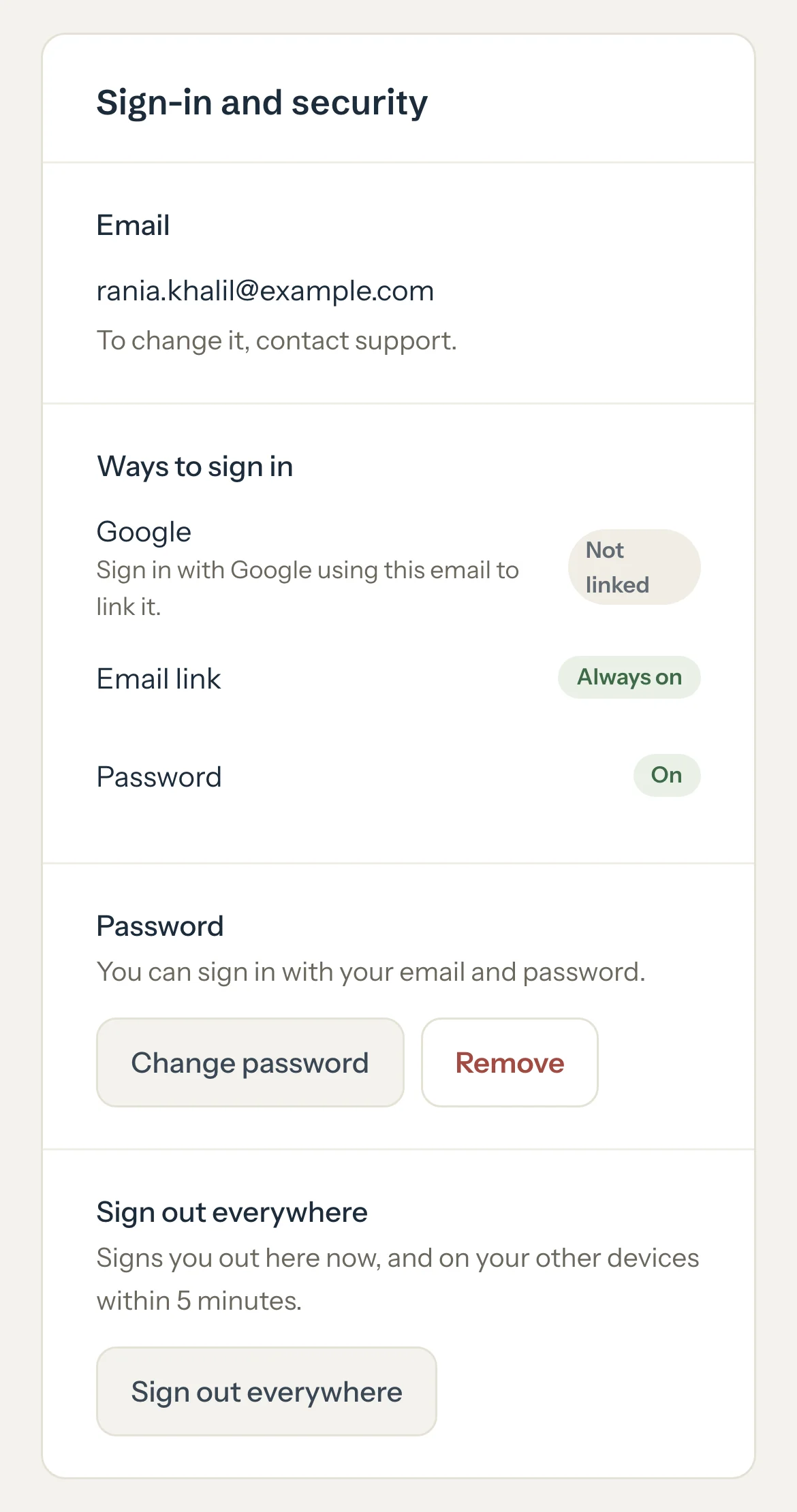
- Settings (tap your initials), then Profile, then Sign-in and security
- On a computer
- Settings, then Profile, then Sign-in and security
Parents and students have the same card on their portal's Profile page.
Steps
In Sign-in and security, press Set a password, or Change password if you have one.
If you're changing it, type your Current password.
Type the new password. The rules under it tick as you go: long enough, not a common password, and doesn't include the first part of your email.
Press Set password or Change password.
Changing it signs out your other devices. Tutello emails you either way, so you'd know if it wasn't you.
Optional: To stop using a password, press Remove, type your current password, then press Remove password.
You sign in with Google or an email link from then on. You're signed out on every device, this one included.
Good to know
- The Email link is Always on. Removing your password never locks you out.
- Google reads Linked once you've signed in with Google using this same email.
- Sign out everywhere signs you out here at once, and on your other devices within a few minutes.
- Resetting a forgotten password signs you out on every device too.
If something's not right
I forgot my password.
On the sign-in page press Sign in with a password, then Forgot password?. Type your email and press Send reset link. The link works once and expires soon, so use it straight away.
"For your security, sign in again to make this change."
You signed in a while ago. Press Sign in again, then make the change.
"Password sign-in is paused after too many wrong tries. Reset your password to turn it back on."
Reset it from Forgot your password? on the card or Forgot password? on the sign-in page. Google and the email link still work meanwhile.
Related
Still stuck? Email support@tutello.ae.