See the next session and the schedule
Find your child's next session, every session before and after it, and save a session to your phone's calendar.
For parents. Updated October 2026.
Where to find it
Your portal's Home, then Full schedule, or Schedule
Steps
Open your portal.
Next session shows who it's for, the day and the time, then the session after it.
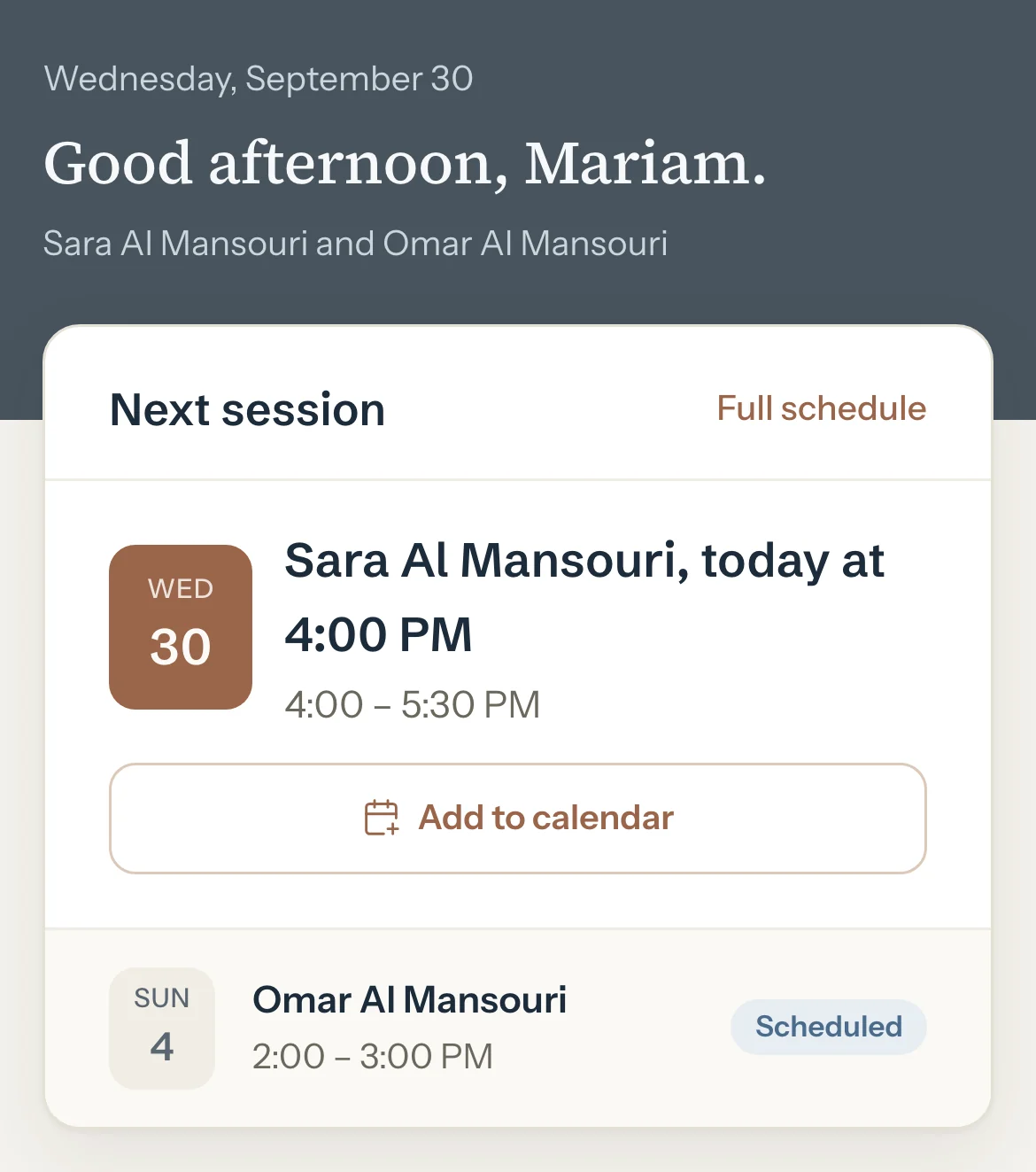
Optional: Press Add to calendar to save that session in your phone's calendar.
Press Full schedule, or Schedule.
Coming sessions are listed by month, the next one first. Past months follow, marked (past).
Optional: With two or more children, tap a child's name to see only their sessions. All students shows everyone again.
Optional: At the end of the list, press Show earlier sessions for older ones.
Good to know
- Each session has its status: Scheduled, Completed, Cancelled, Cancelled late or No-show.
- Times are in your tutor's time zone.
- Home also shows the notes your tutor shares after a session. Notes they keep private never show.
- A session saved with Add to calendar doesn't update. If your tutor moves it, add it again.
- The schedule is read-only. To move or cancel a session, ask your tutor. Their change shows the next time you open the portal.
If something's not right
"No upcoming sessions."
Your tutor hasn't added the next sessions yet. Ask them about the next date.
A session is missing or at the wrong time.
Your tutor keeps the schedule. Ask them to correct it.
Related
Still stuck? Email support@tutello.ae.