Check a month's report cards
See every student's card for a month in one list, then check them one after another and publish the ready ones together.
For tutors. Updated October 2026.
Where to find it
- On a phone
- Students, then Report cards at the top, then Cards
- On a computer
- Report cards, then Cards
From the 1st, the dashboard's To do says how many of last month's cards are ready to check. Check opens them.
Steps
Open Report cards and press Cards.
It shows last month. Use Previous month and Next month to move.
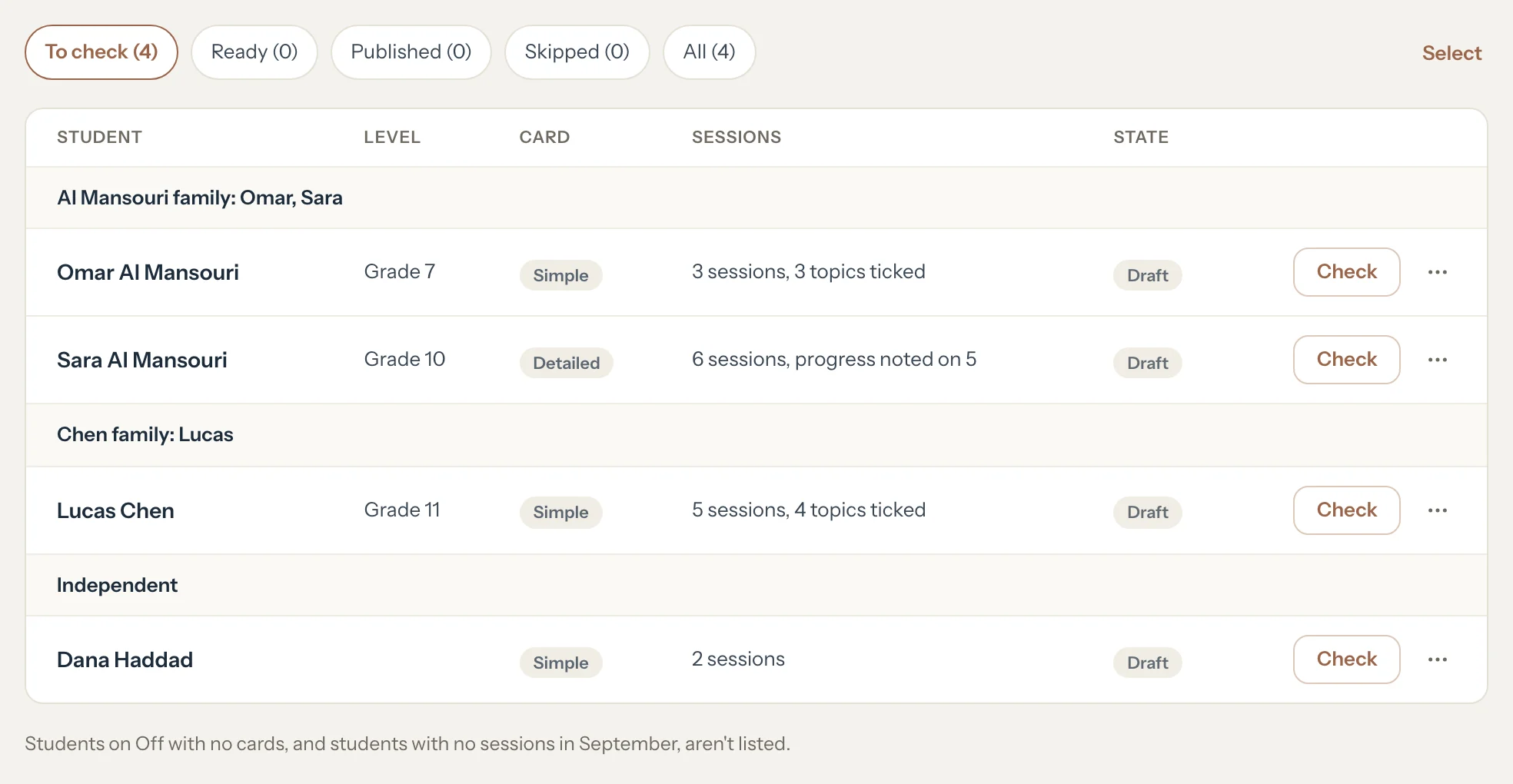
Read the list. Each family's students sit together, then students who pay for themselves under Independent.
Each row shows the level, the card type, the sessions and the state: Draft, Ready, Published, Skipped or To update.
Press Start checking.
The first card opens under Checking September cards: 1 of 4.
Read the card, write your lines, then press Ready, next card.
It's marked Ready and the next card opens. Publish now publishes this one straight away.
Press Back to list when you're done.
The list reads 4 cards are ready.
Press Publish 4 ready cards, then Publish 4 cards.
Each family sees their own cards in the portal. Nothing is sent: share them from each card.
What parents see
- Each card under Report cards in their portal once it's published, with a New dot until they open it. Nothing reaches them before that.
Good to know
- Use the filters To check, Ready, Published, Skipped and All to narrow the list. To open one card, tap its row on a phone, or press Check or Open on a computer.
- Students on Off with no cards, and students with no sessions that month, aren't listed.
- Previous and Next move between cards without marking anything.
- A card with a warning stays unpublished when you publish the ready ones, so you can look at it. A card held back only because it mentions another student shows Mentions Omar and Publish anyway on its row.
- To update marks a published card whose sessions have changed since. Open it to publish the update: see Update, unpublish or delete a report card.
- More on a row skips the month or opens the student's page. Select skips several students at once: see Skip a month or choose the dates.
Related
Still stuck? Email support@tutello.ae.