Choose how often cards are made
Have a draft card ready for every student each month, or only when you ask, and let the dashboard's To do remind you.
For tutors. Updated October 2026.
Where to find it
- On a phone
- Settings (tap your initials), then Preferences, then the Report cards card
- On a computer
- Settings, then Preferences, then the Report cards card
One student's own choice is on their page, under Progress.
Steps
Under How often, keep Every month or choose Only when I make one.
Every month: drafts appear on the 1st of each month. Nothing is sent until you publish.
Optional: For one student, open their page, press Progress, and choose under How often.
Use my default puts them back on yours.
From the 1st, look at the dashboard's To do.
It says how many of last month's cards are ready to check, and how many published ones need an update.
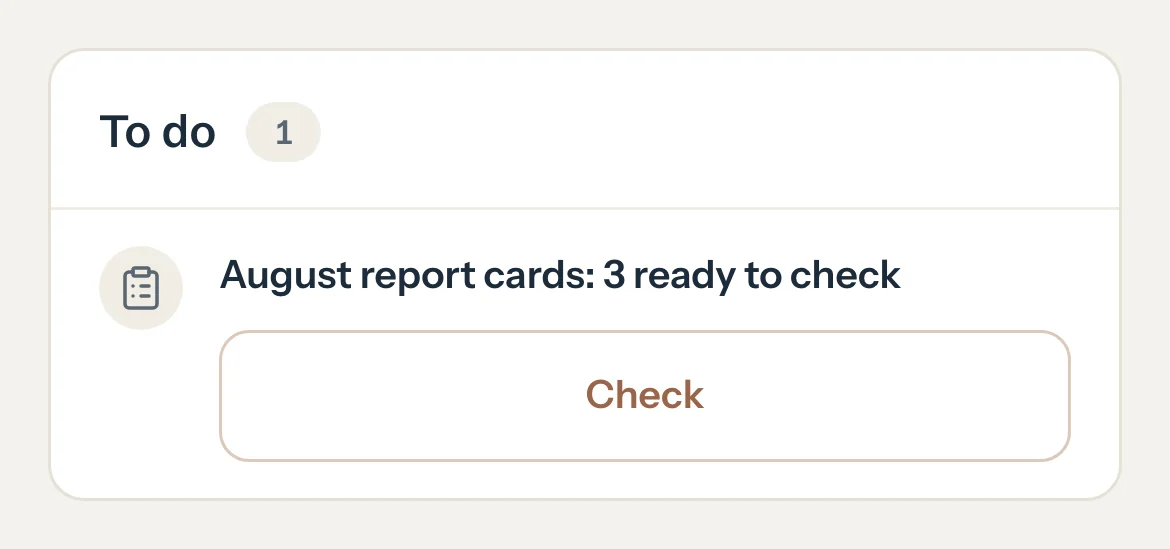
Press Check.
Report cards opens on that month.
Good to know
- With Only when I make one, no drafts appear by themselves. Press New report on Report cards when you want one.
- A monthly draft appears only for a student who had a session that month. No sessions, no draft.
- The month's row stays on To do until every card is published or skipped, or the next month starts.
- For Detailed students, To do also counts last week's sessions with no progress noted, with Add progress and Hide for this week.
- Nothing is ever sent to parents by itself, whichever you choose.
Related
Still stuck? Email support@tutello.ae.