Write and publish a report card
Tutello fills in the sessions and topics; you write a few lines, check the preview, and publish the card to the family's portal.
For tutors. Updated October 2026.
Where to find it
- On a phone
- Students, then Report cards at the top, then the student's row
- On a computer
- Report cards, then Check on the student's row
A student's page has their cards under Progress, each with Open.
Steps
Open the card.
Notices at the top say what needs a look first. Most have a button that fixes it.
On a Simple card, write Going well and To work on. On a Detailed card, write From Rania or a Going well line for a subject.
It saves as you type: Draft saved.
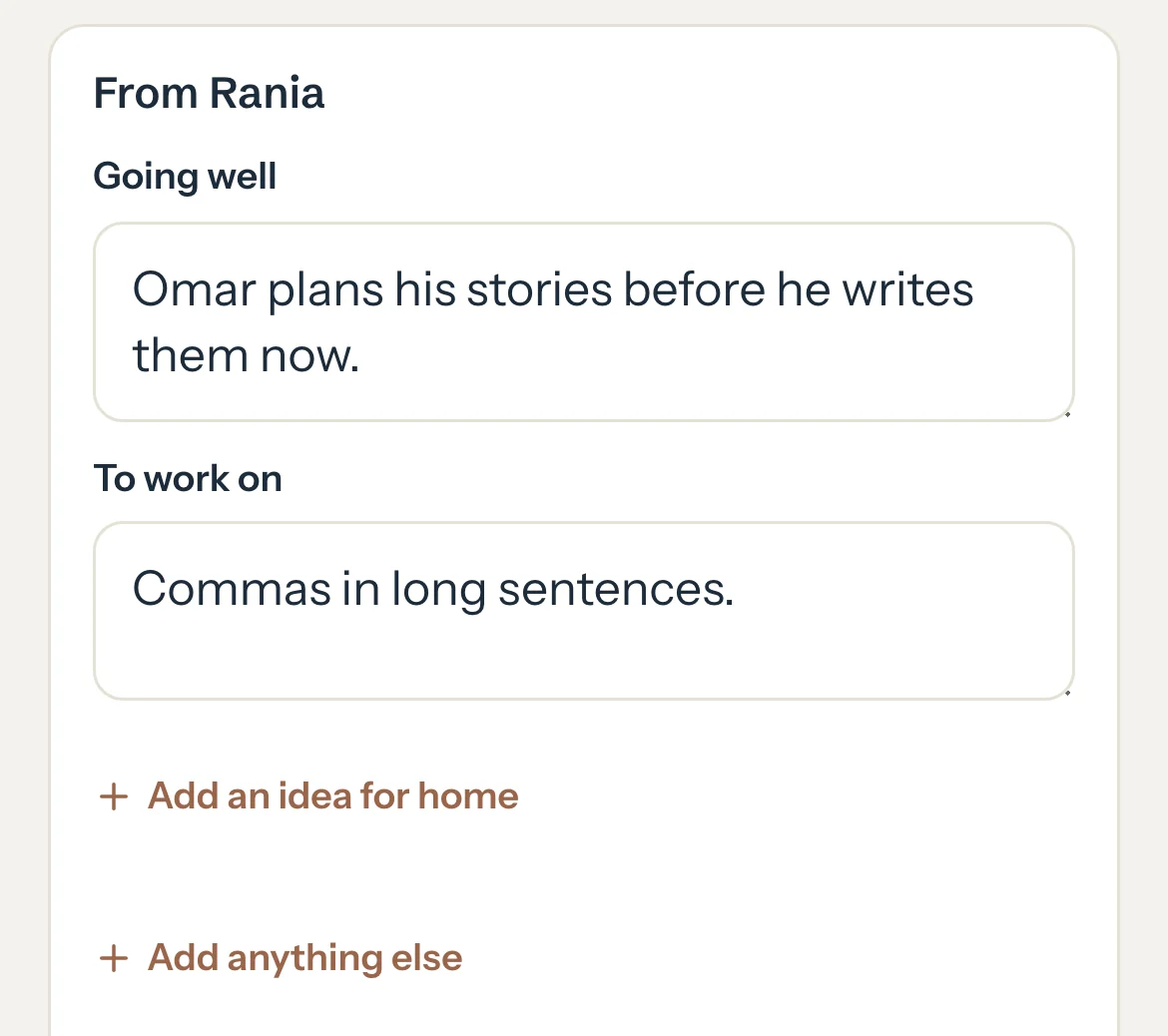
On a Simple card, check What we covered. Untick any topic you don't want on the card, or press Add a topic.
On a Detailed card, each subject lists its Topics this month: choose each topic's level. From your sessions shows what you noted.
Optional: Check Next month (suggested). Press Change to pick another topic, or Hide.
Press Preview to see the card as the family will, on a phone, as a PDF and as a picture.
Preview. Only you can see this. stays at the top.
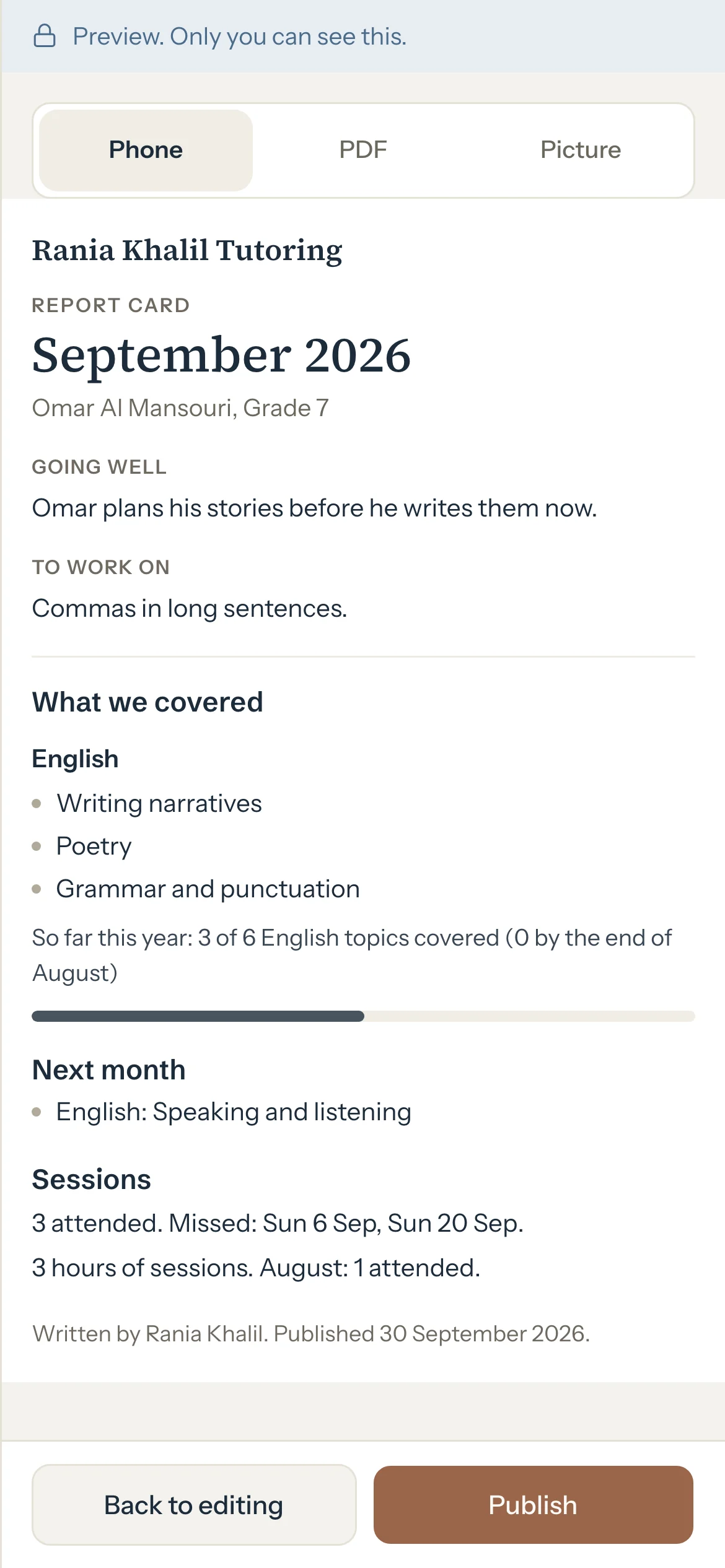
Press Back to editing to change something, or Publish.
Read who will see it, then press Publish.
The card is in their portal. Nothing is sent: Share opens so you can send it yourself.
What parents see
- The card under Report cards in their portal, with a New dot until they open it.
- Your words, the topics, the sessions and, on Detailed, each topic's level, homework and test scores. Tutello adds no amount or fee.
- A student with their own portal login sees it too, if you allow it: Students see their own cards in Settings, or their own switch on their Progress tab.
Good to know
- Tutello writes nothing on a card by itself: only labels, facts from your sessions, and your words.
- Add an idea for home and Add anything else add two more lines to a Simple card.
- Turn off Show missed and cancelled sessions on the card to show only the sessions that took place.
- Every topic under What we covered counts in the topics covered so far, whether a session named it or you ticked it, even if you set up the list later. Next month (suggested) moves past it, and once the card is published it stays counted on later cards and on the student's Progress tab. A topic hidden on the list never counts.
- Who will see it lists each parent and the student, and who has a portal login. Invite to the portal sits under anyone who hasn't.
- More holds Change card type (for this card only), the month's skip, Delete draft and Open student page.
- On a Detailed card, Progress over time shows from the student's third card, and Session by session lists each session with its shared notes.
- A school mock from an earlier month shows as Latest mock under the subject's exam. Press Hide to leave it off this card. A mock you hid or corrected on its own month's card stays that way on later cards.
- Edit on a test score from a session changes how this card prints its name, result and note. Its type stays the one on the session: change it there.
If something's not right
"Write Going well and To work on first."
A Simple card needs both lines before it can be published.
Going well and To work on are the same as last month's.
Change them so they're about this month. A card can't repeat last month's lines.
A warning says your words mention another student.
Check you're on the right card. It's a warning only: you can still publish.
A warning says the card mentions money.
The student can read this card in their own portal. Take the amount out, or publish if it's fine.
A notice says a session is still marked Scheduled.
Press Open and mark the session completed or cancelled, so it counts.
Related
Still stuck? Email support@tutello.ae.