Add a family
Start with the parent's mobile or email, then one form takes the family's details and every child.
For tutors. Updated October 2026.
Where to find it
Families, then Add family
Steps
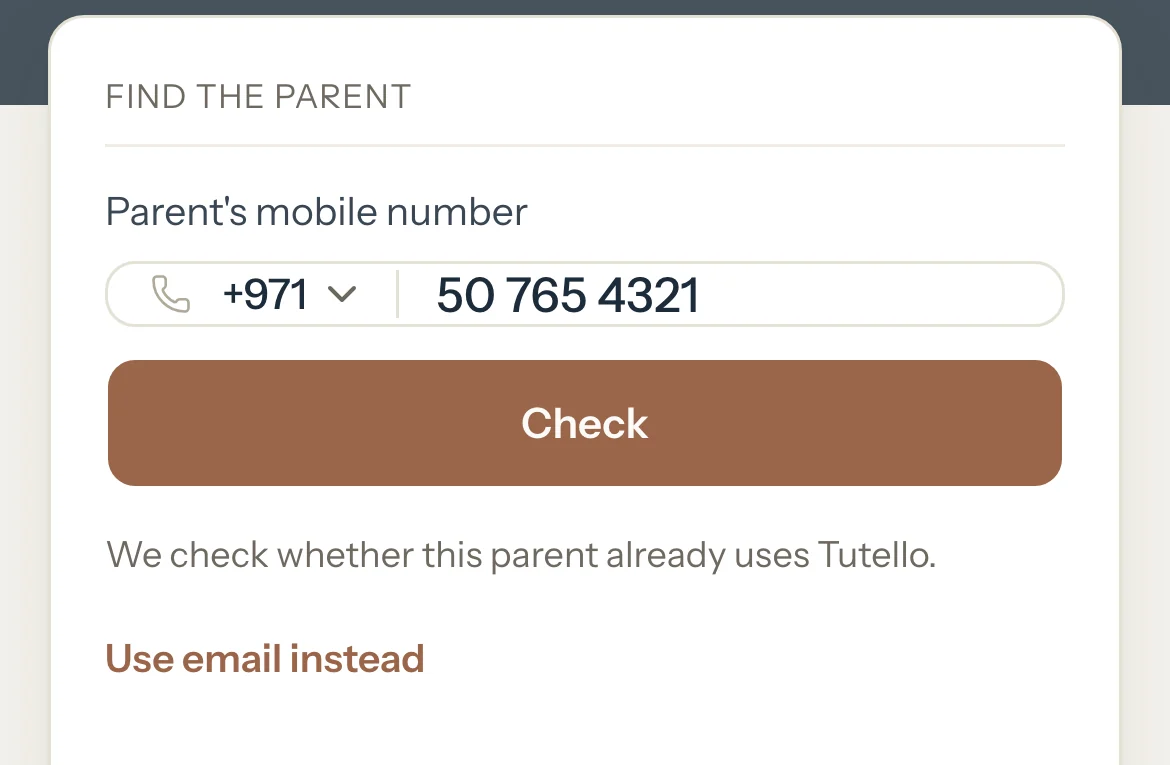
In Parent's mobile number, type the mobile of the parent you deal with. To look them up by email instead, press Use email instead.
Press Check.
When the parent isn't on Tutello yet, the family form opens with that number already in Parent 1. If the number is on Tutello but can't be invited by it, the same form opens and says the parent is already on Tutello: fill it in, then invite them from the family's page. When they already use Tutello, it says so instead: see Good to know.
In Family name, type the family's name, for example Al Mansouri.
Fill in Parent 1's First name. Last name and Email are optional, and the mobile is already there.
Optional: Add a second parent or guardian. On a phone, press Add a second parent first.
Under Students, type the first child's name and choose their Curriculum and Year. Leave Hourly rate empty to use your default rate.
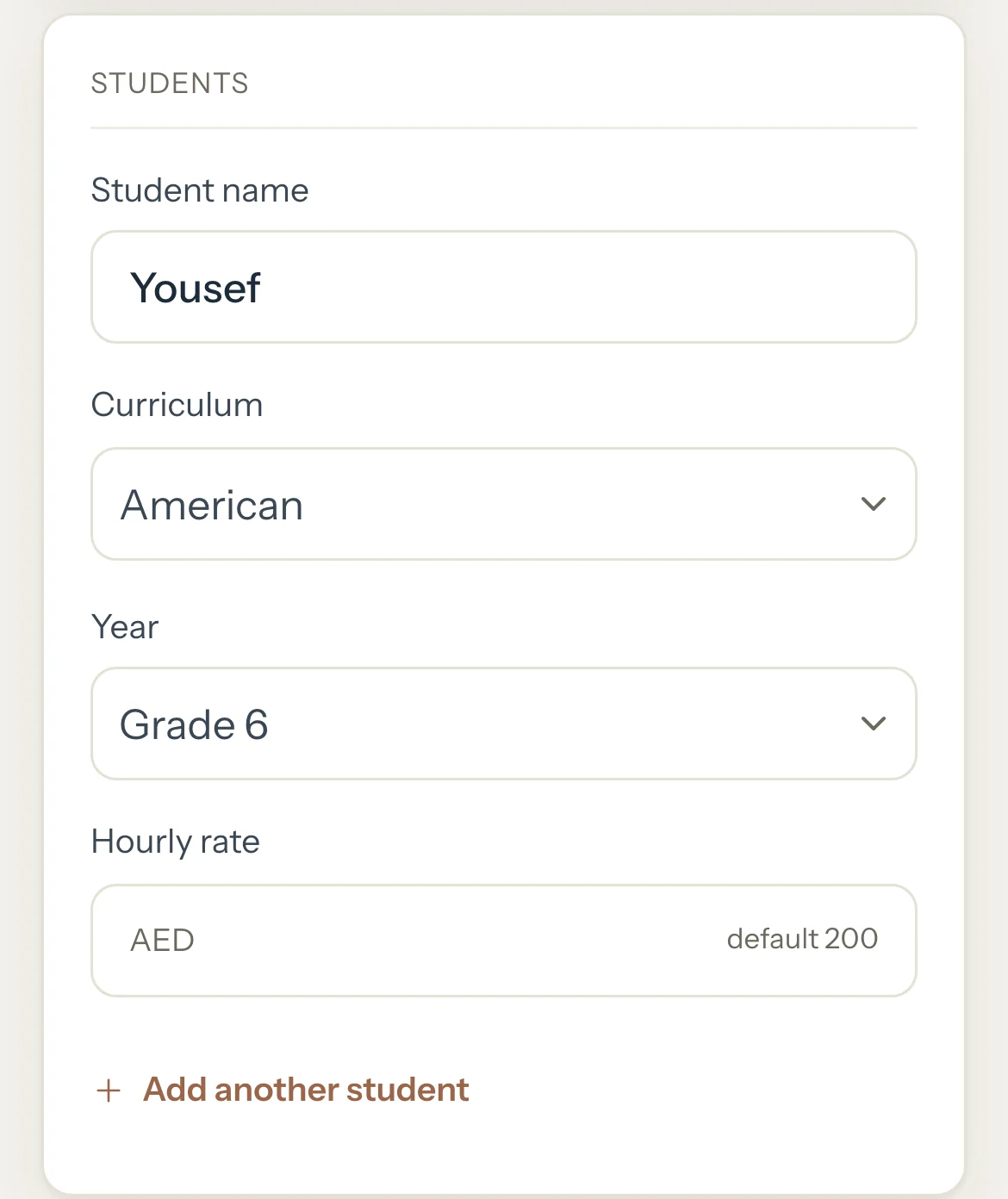
Optional: Press Add another student for each brother or sister.
Press Add family.
The family's page opens, ready for its first session.
Good to know
- When the parent already uses Tutello, the check shows their name and nothing else about their account. Give the family a name or leave it empty, then press Add family. The parent finds your invite in their portal.
- A parent found by their mobile is not let in on their own: once they accept, you confirm it's the right parent on the family's page. A parent found by email gets access as soon as they accept.
- Saving the family sends nothing to the parents. To give them the portal, invite them from the family's page, under Portal access.
- A student row left empty is skipped, so you can add the children later with Add student on the family's page.
- Two children with the same name get a warning first. Press Add both anyway if they really are two.
If something's not right
"You already have this family."
That mobile or email is already on one of your families. Open it with the link under the message instead of adding it again.
"Too many checks. Try again later."
You can still add the family now: press Add the family's details and fill in the form.
"Couldn't check this parent. Try again."
Press Check again. If it keeps failing, press Add the family's details to carry on without the check.
Related
Still stuck? Email support@tutello.ae.