Set up subjects and topic lists
Give each subject a topic list, from Tutello's suggestion, a template, a saved list or your own, so cards can show what you covered.
For tutors. Updated October 2026.
Where to find it
- On a phone
- Students, then Report cards at the top, then Set up
- On a computer
- Report cards, then Set up
One student's lists are on their page, under Progress, then Topics.
Steps
Press Set up on the student's row.
Set up Omar for report cards opens on the level.
Choose the Curriculum and Year, then press Next.
Check the subjects. Remove one with its cross, or type a new one in Add a subject, then press Next.
A subject Tutello knows by another name reads Matched to Mathematics lists.
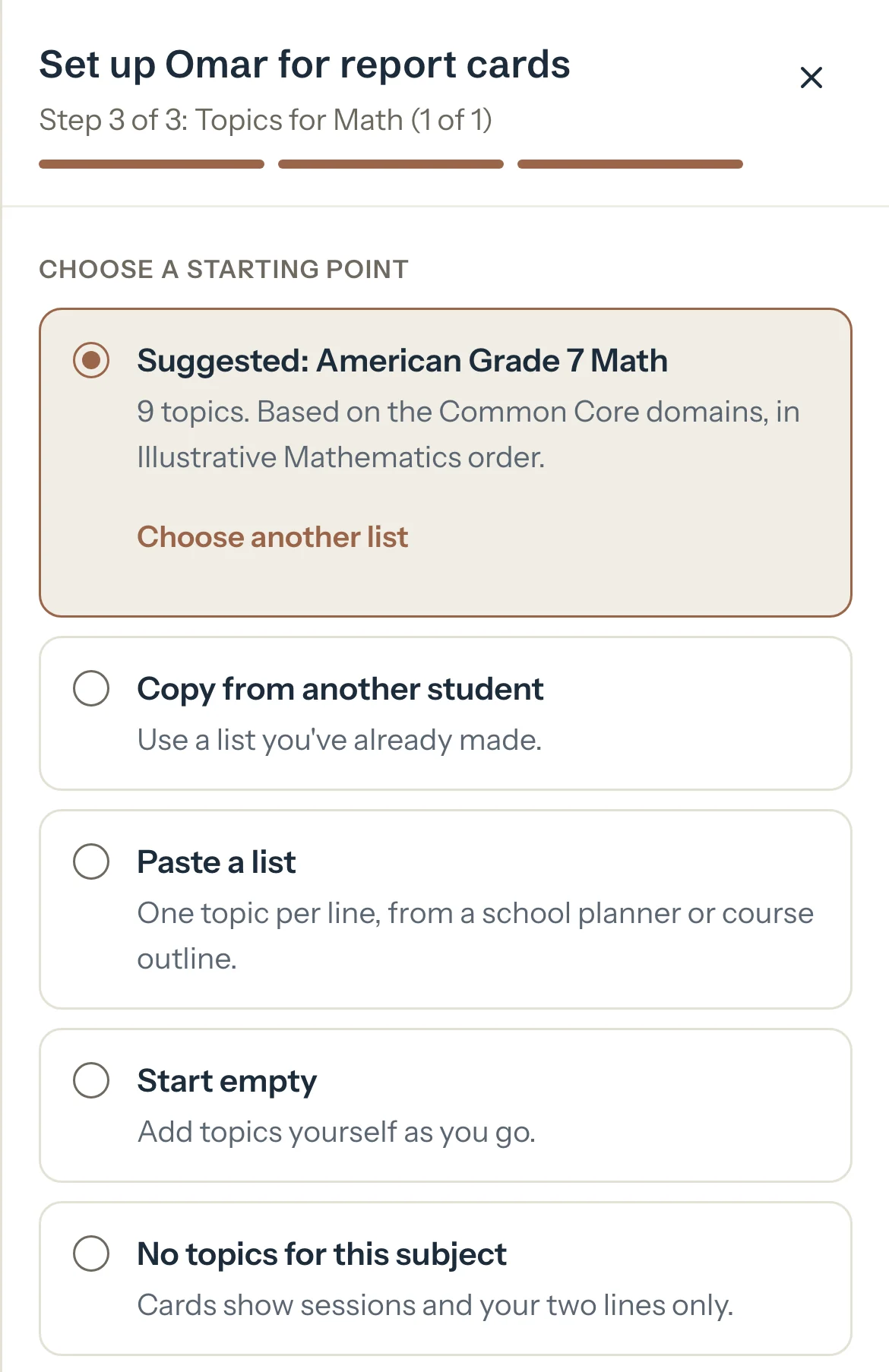
Under Choose a starting point, keep the suggested list, or press Choose another list, Copy from another student, Paste a list or Start empty.
No topics for this subject is there too: that subject's cards then show sessions and your own words only.
Press Next and check the list. Tick off a topic to hide it, tap one to rename it, or type a new one in Add a topic.
Optional: Under Omar has covered everything up to:, choose the last topic done before you started noting progress.
Those topics read Covered before, so the first card doesn't look like a fresh start.
Press Next subject to do the same for the next subject, then Save on the last one.
Omar is set up for report cards. With more to do, Set up Omar next opens the next student.
Good to know
- Students without topics still get cards, with their sessions and your own words. You don't have to set anyone up before their first card.
- Set up several at once sets up students who share a year: their level once, then each subject's list, and each student keeps their own copy. Set up later keeps Report cards on Cards, and Set up stays one tap away.
- On a list you changed, press Save as my list to use it again: it shows under Copy from another student when you set up someone else. Rename or delete your lists from Your saved topic lists on the Report cards card in Settings. Students who use one keep their own copy.
- On a suggested list, Something wrong with this list? sends the list's name and what you write, nothing about the student. It shows with your ideas on What's new.
- Later, under Progress, Topics shows each list with what was started, in sessions or on a published card. Use Edit topics to change it and Rename subject to rename it.
- Choosing another list keeps the old one under Earlier years, so earlier cards still read.
- Where the topic lists come from, on the Report cards card, names the sources of Tutello's lists.
If something's not right
There's no suggested list.
Tutello has none for that subject and year yet. Press Use a template, paste the school's list with Paste a list, or Start empty.
"Thanks. We'll check the list."
Your note was sent. Nothing changes on the student's list until you edit it.
Related
Still stuck? Email support@tutello.ae.