Edit a student
Change a student's name, level, subjects, notes or rate from their page, whether or not their portal invite was accepted.
For tutors. Updated October 2026.
Where to find it
Students, then the student, then Edit
A family's page lists its students as cards. Open one to reach the same page.
Steps
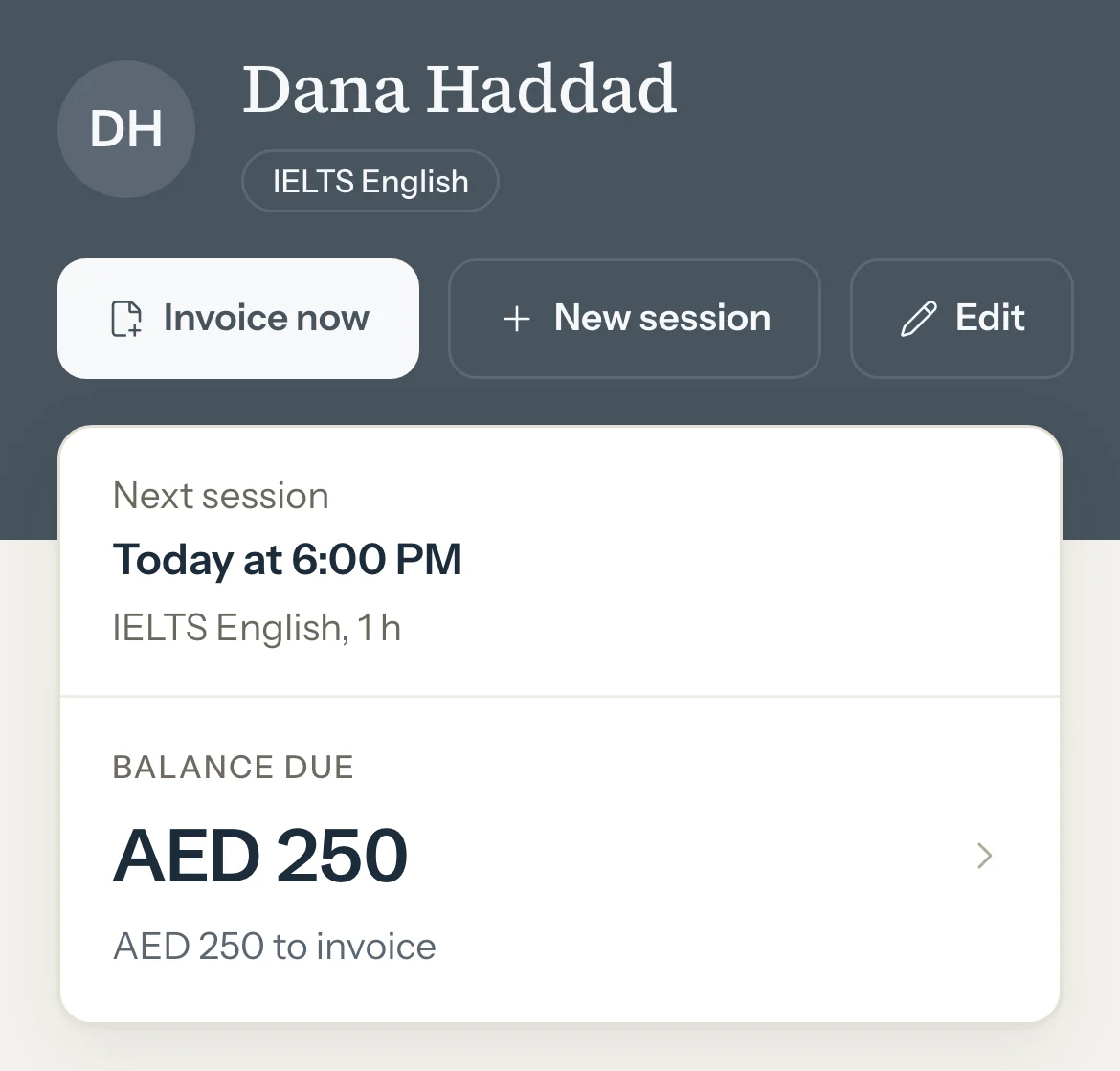
Open the student's page and press Edit.
Details opens with the cursor in Name.
Optional: Change the Name.
Optional: Under About, change the Phone of a student who pays directly, their Colour, or your Notes.
Optional: Under Level and subjects, change the level or the Subjects.
Optional: For a student in a family, change their Rate if you like. A student who pays directly has their rate on Billing.
Press Save changes.
The page shows the new details.
Good to know
- Editing works the same before and after the invite is accepted. Nothing about a student is locked while their parent or they haven't joined yet.
- Once they have joined, the portal shows a new name at once. An invite that is still waiting shows the new name too.
- A student in a family has no phone or email of their own. Their parents' details are in Edit family, and their colour is the family's.
- A student who pays directly needs a Phone. You can change it but not leave it empty.
- The address an email invite went to isn't part of the student's details. To send it to another address, press Change email beside Resend under Portal access, type the new address and press Invite by email. The invite to the old address stops working.
- For a student who pays directly, saving a new Phone stops an invite you sent By phone to the old number. Send a new one from Portal access.
- A deactivated student can be edited too. To add sessions again, reactivate them first.
- Notes are only for you. Parents and students never see them.
If something's not right
"Your account is read-only. Go to Plan in Settings to make changes."
Your trial or plan has ended, or a card payment has been failing for 14 days. In Settings, under Account, choose a plan or press Update payment, and your changes save again.
Related
Still stuck? Email support@tutello.ae.